How to Add Google Drive in MB WhatsApp: A Comprehensive Guide
Hey there, fellow tech enthusiasts! If you’re anything like me, you’re always on the lookout for ways to supercharge your messaging apps. WhatsApp has been a staple in our daily lives for years, but let’s be real sometimes the official version just doesn’t cut it. That’s where mods like MB WhatsApp come into play. This customized version of WhatsApp packs in extra features that make chatting, sharing, and managing your data a breeze. One of the coolest tricks you can pull off with MB WhatsApp is integrating Google Drive for backups, file storage, and seamless syncing. In this blog post, we’re diving deep into how to add Google Drive to MB WhatsApp. I’ll walk you through every step, explain why it’s worth your time, and share some pro tips to make the process smooth as butter. Buckle up this is going to be a detailed ride!
First things first, let’s get on the same page about what WhatsApp MB actually is. If you’re new to the world of WhatsApp mods, MB WhatsApp is essentially a tweaked version of the original app. It offers things like enhanced privacy settings, custom themes, larger file sharing limits, and yes, advanced backup options. Unlike the standard WhatsApp, which ties backups strictly to Google Drive on Android devices, MB WhatsApp gives you more flexibility. You can customize how and where your chats, media, and settings are stored. Adding Google Drive specifically means you can leverage Google’s cloud storage for automatic backups, easy restores, and even sharing files directly from Drive within the app. It’s a game-changer for anyone who juggles multiple devices or worries about losing precious conversations.
Why bother with this integration, you ask? Well, imagine this scenario: You’ve got hundreds of chats filled with important work documents, family photos, and hilarious memes. One day, your phone decides to take a dive into the toilet (hey, it happens), and poof everything’s gone. With Google Drive hooked up to MB WhatsApp, you can restore everything in minutes on a new device. Plus, it frees up space on your phone by offloading media to the cloud. For power users, it opens up possibilities like syncing custom themes or stickers across accounts. And let’s not forget the security angle Google Drive’s encryption adds an extra layer of protection to your data. In a world where privacy is paramount, this setup lets you control your backups without relying solely on WhatsApp’s servers.
Before we jump into the how-to, a quick note on safety. Since MB WhatsApp iOS is a mod, it’s not available on official app stores. You’ll need to download it from trusted sources (we’ll touch on that later), and always ensure your device has solid antivirus protection. Mods can sometimes introduce risks, so proceed with caution. That said, thousands of users swear by MB WhatsApp for its features, and integrating Google Drive is one of the safest enhancements you can make.
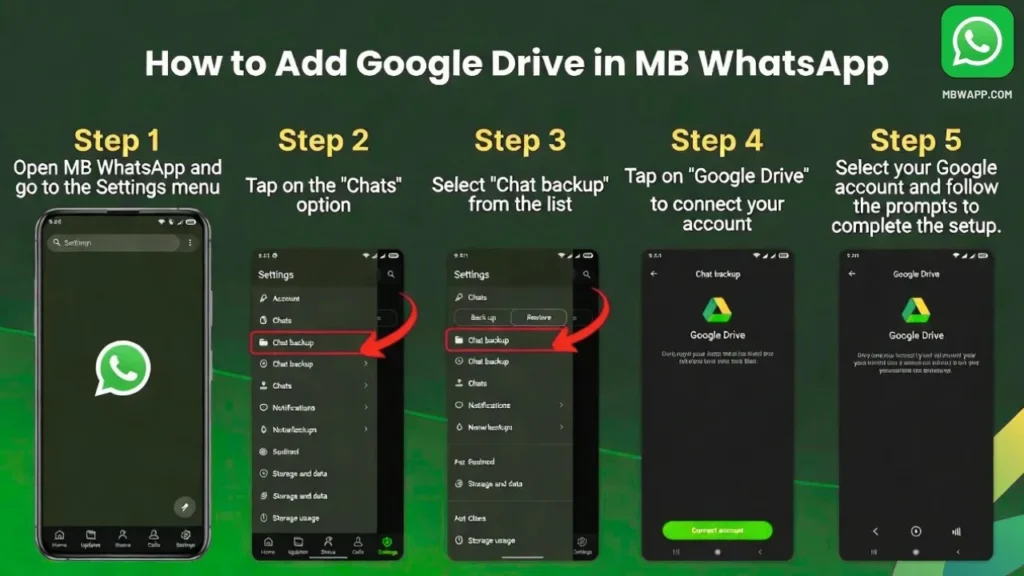
Alright, let’s roll up our sleeves and get to the main event: the step-by-step guide on adding Google Drive to MB WhatsApp. I’ll break it down into clear sections so you can follow along easily. If you’re tech-savvy, this might take you 10-15 minutes; if not, no worries—I’ll explain everything in plain English.
Step 1: Installing MB WhatsApp on Your Device
To start, you need MB WhatsApp up and running. If you already have it, skip ahead. For newcomers, begin by uninstalling the official WhatsApp app to avoid conflicts. Head to your phone’s settings, find the apps section, and remove WhatsApp. Next, enable installations from unknown sources in your security settings this is crucial for sideloading the MB WhatsApp APK.
Once that’s done, download the latest version of MB WhatsApp. It’s usually available as an APK file. After downloading, open the file and follow the on-screen prompts to install. During setup, you’ll verify your phone number just like in regular WhatsApp. Restore any existing backups if prompted, but hold off on Google Drive for now we’re about to set that up fresh.
Pro tip: Always back up your official WhatsApp data before switching. You can do this in the official app’s settings under Chats > Chat backup. This way, you have a safety net.
Step 2: Navigating to the Backup Settings in MB WhatsApp
With MB WhatsApp installed, open the app and let it load your chats. The interface looks familiar but with extra bells and whistles. Tap the three-dot menu in the top right corner to access the main settings. From there, scroll down and select “Chats.” Inside Chats, you’ll find “Chat backup” or a similar option MB WhatsApp often labels it as “MB Backup” to distinguish its custom features.
Here, you’ll see options for local backups (stored on your device) and cloud backups. This is where Google Drive comes in. If it’s not already listed, don’t panic; MB WhatsApp’s modded nature allows you to add it manually.
How to change fonts and color in MB Whatsapp
Step 3: Linking Your Google Account
Now for the integration magic. In the backup settings, look for “Back up to Google Drive” or “Add Cloud Storage.” Tap it, and you’ll be prompted to sign in with a Google account. Choose the account you want to use—ideally one with plenty of free storage (Google gives you 15GB to start). Grant the necessary permissions when asked; this allows MB WhatsApp to access Drive for uploading and downloading backups.
If you encounter a permission error, double-check your Google account settings. Sometimes, two-factor authentication can trip things up temporarily disable it if needed, but remember to turn it back on afterward for security.
Once linked, set your backup frequency. Options typically include daily, weekly, or monthly. I recommend daily for heavy users to ensure nothing slips through the cracks. You can also choose to include videos, which eat up more space but are worth it for media-rich chats.
Step 4: Customizing Your Google Drive Backup
MB WhatsApp shines here with its customization options. After linking, dive into advanced settings. You might find toggles for selective backups back up only certain chats, exclude large media files, or even encrypt backups with a password. This is a step up from standard WhatsApp, where backups are all-or-nothing.
To add more flair, explore integrating Drive for file sharing. In MB WhatsApp’s file explorer (often under Attachments or Media), you can link Drive folders. This lets you attach files directly from Google Drive without downloading them first, saving time and data.
Test your setup by initiating a manual backup. Go back to the backup screen, hit “Back up now,” and watch the progress. Once complete, open Google Drive on your phone or computer to verify the backup file appears in the WhatsApp folder (it might be named something like “MBWhatsApp Backups“).
Benefits of Google Drive Integration in MB WhatsApp
Now that you’ve got the basics down, let’s talk about why this setup is a total winner. For starters, cross-device syncing is effortless. Switch from your Android phone to a tablet? No problem restore from Drive in seconds. This is especially handy for professionals who use WhatsApp for business communications.
Storage management is another big perk. Phones fill up fast with photos and videos. By routing backups to Drive, you keep your local storage lean. Plus
One Comment