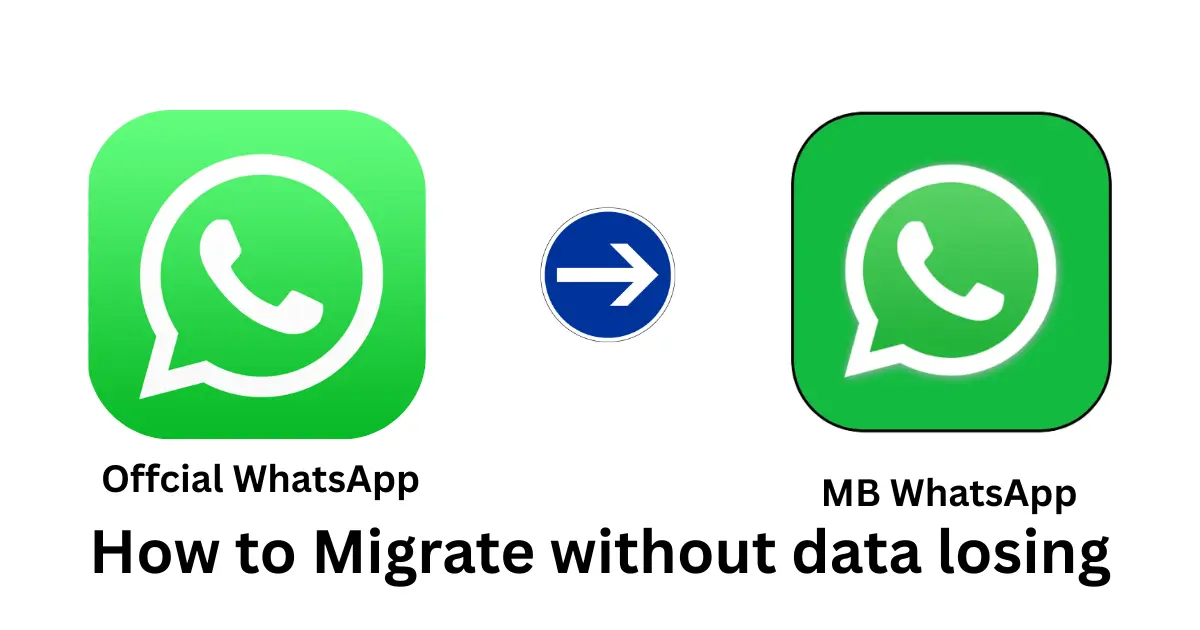
How to Migrate Offcial WhatsApp to MB WhatsApp
(Simple & Detailed Guide)
If you’re planning to move from the official WhatsApp to MBWhatsApp, the biggest fear is losing chats, photos, and videos.
Don’t worry. If you follow this guide carefully, you can switch apps without losing your data.
I’ll explain everything in simple, human-friendly words.
Important: MB WhatsApp is not an official app. There is always a small risk of account ban. Also, it’s not verified by the Google Play Store, so install it carefully.
Before You Start (Read This First)
There are 3 important rules:
- Do not uninstall WhatsApp before backup
- Do not delete the WhatsApp folder from your storage
- Use the same phone number while logging in
If you follow these, your data will stay safe.
Take Proper Backup (Most Important Step)
This step protects your chats.
How to Backup:
- Open WhatsApp
- Go to Settings
- Tap Chats
- Tap Chat Backup
- Press Back Up
Wait until the backup is fully completed.
Do not close the app during backup.
Make sure you have internet and enough storage space.
Extra Safety Tip (Recommended)
After backup:
- Open File Manager
- Go to:
Internal Storage > WhatsApp - You will see folders like:
- Databases
- Media
- Copy the entire WhatsApp folder
- Paste it somewhere safe (like another folder)
This is your manual backup. Even if something goes wrong, your chats are still safe.
Uninstall Official WhatsApp (Carefully)
Once backup is complete:
- Long press the WhatsApp app
- Tap Uninstall
Important:
- Do NOT delete app data manually
- Do NOT delete the WhatsApp folder from storage
Just uninstall the app only.
Install MB WhatsApp
Since MB WhatsApp is a modified app, it is not available on the Play Store.
What to Do:
- Download the latest WhatsApp MB APK from a trusted website
- Go to Phone Settings
- Enable Install from Unknown Sources
- Install the APK file
After installation, open MB WhatsApp.
Step 4: Verify and Restore Your Chats
Now the final step.
- Open MB WhatsApp
- Enter your same phone number
- Verify using OTP
- It will search for backup
- Tap Restore
- Wait patiently
Do not close the app while restoring.
After restoration completes, you will see all your chats, groups, and media again.
What If Backup Is Not Detected?
If MB WhatsApp does not detect your backup:
- Go to File Manager
- Rename folder:
WhatsApp → MBWhatsApp - Try verifying again
(Some versions require folder renaming.)
Important Things to Remember
Always keep enough storage space
Use same phone number
Never clear phone storage during process
Don’t rush wait for restore to finish
Keep your manual backup until everything works perfectly
Is It 100% Safe?
Honestly speaking:
- There is always a risk of temporary or permanent ban.
- MB WhatsApp is not officially supported.
- Your data security depends on the source of the APK.
If privacy and security are very important to you, staying on official WhatsApp is safer.
But if you want more customization and features, you can switch carefully by following this guide.