How to Share Location on WhatsApp (Current & Live Location Guide)
Ever tried explaining directions over a phone call, only to end up more confused than before? That’s exactly why knowing how to send location on WhatsApp comes in so handy. Instead of typing out addresses or landmarks, you can simply drop a pin and let the other person see exactly where you are.
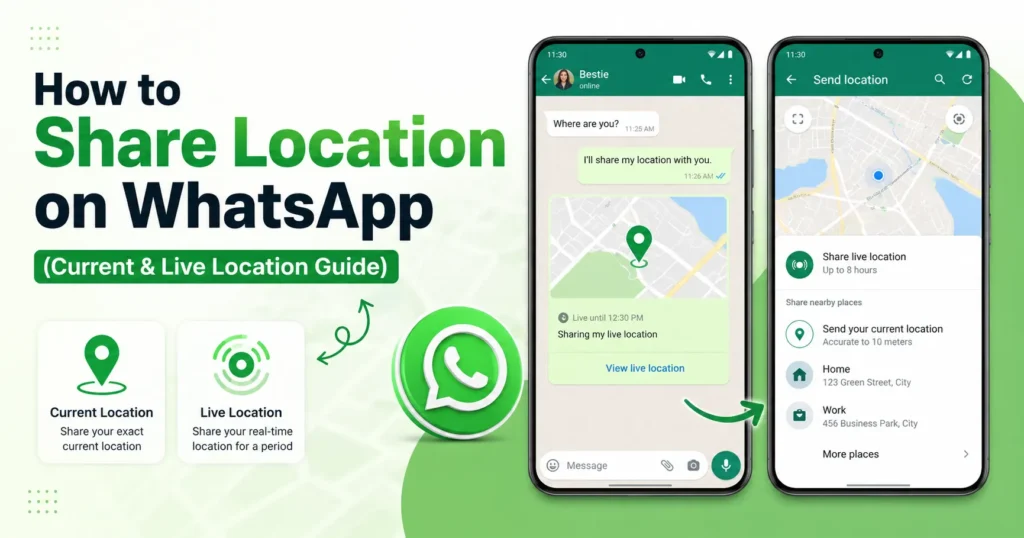
People use this feature for all kinds of reasons meeting up with friends, helping family track a trip, or sharing whereabouts during an emergency. WhatsApp gives you two main options here: sharing your current location as a one-time snapshot, or turning on live location so your contacts can watch you move in real time. Let’s break down both, along with everything else you need to know.
What Is WhatsApp Location Sharing?
WhatsApp location sharing lets you send your exact spot on a map directly inside a chat. It uses your phone’s GPS to pinpoint where you are, then shares that as a clickable map link.
There are two versions of this feature. Current location is a single, fixed snapshot like a photo of where you stood at that moment. Live location, on the other hand, updates continuously for a set time, so your contact can follow your movement as you travel.
Both versions fall under WhatsApp’s location feature, and choosing between them really just depends on what you need at the moment.
Benefits of Sharing Your Location on WhatsApp
There’s more to this feature than just convenience. Here’s why so many people rely on it daily.
Meeting friends and family becomes much easier when you can share current location on WhatsApp instead of typing out confusing directions. No more “I’m near the blue building” texts.
Travel assistance is another big one. Whether you’re in a new city or just an unfamiliar part of town, sending your GPS location helps friends or family find you without any guesswork.
Emergency situations are where this feature truly shines. If something goes wrong, sharing your real-time location on WhatsApp can help loved ones or responders reach you faster.
Business and delivery purposes also benefit. Many delivery agents and service providers use WhatsApp location sharing to confirm exact drop-off points, especially in areas without clear street addresses.
How to Send Your Current Location on WhatsApp on Android
Sending your current location on Android takes less than a minute. Here’s how to do it step by step.
Step 1: Open WhatsApp and go to the chat where you want to send your location.
Step 2: Tap the paperclip (attachment) icon near the text box.
Step 3: Select “Location” from the menu of options that appears.
Step 4: Choose “Send your current location” from the next screen.
Step 5: Confirm the map preview looks correct, then hit send.
That’s it your contact will receive a map snippet showing exactly where you were when you sent it.
How to Share Live Location on WhatsApp on Android
If you want someone to track your movement in real time, live location is the way to go.
Step-by-Step Guide
Open the chat, tap the paperclip icon, and select “Location” just like before. This time, instead of current location, tap “Share Live Location.” Choose how long you want to share it for options usually include 15 minutes, 1 hour, or 8 hours. Once selected, tap send, and your live location on WhatsApp will start updating automatically in that chat.
You can stop it anytime before the timer runs out, which we’ll cover a little later.
How to Send Location on WhatsApp on iPhone
The process on iPhone is nearly identical, with just a few menu differences.
Step-by-Step Guide
Open the chat and tap the plus (+) icon next to the message box. From the menu, select “Location.” Tap “Send Your Current Location,” review the map that pops up, and tap send. Your iPhone will use its GPS to share your exact spot, just like on Android.
If WhatsApp asks for location permission and you haven’t granted it yet, you’ll need to allow access through your iPhone settings first.
How to Share Live Location on iPhone
Sharing live location on iPhone follows a similar pattern to current location, with one extra step.
Step-by-Step Guide
Tap the plus (+) icon in your chat, then select “Location.” This time, choose “Share Live Location” instead of the current location option. Pick your preferred duration, then tap send. Your contact will now see your position update in real time for as long as you’ve chosen to share it.
This is one of the most useful WhatsApp location features for road trips, meetups, or keeping family updated while you’re out.
Can You Send Location on WhatsApp Web or PC?
Here’s where things get a little different. WhatsApp Web and the desktop app don’t have full built-in location-sharing support the way mobile apps do. Since your computer typically doesn’t have GPS hardware, WhatsApp can’t always pinpoint your exact location the way a phone can.
That said, some desktop versions allow location sharing through your browser’s location permissions, though accuracy can vary. If your browser supports location access and you’ve granted permission, you may see a location option appear in the attachment menu.
If it’s not available on your version, the easiest workaround is to send your location from your phone instead, since it’s quicker and far more reliable for pinpoint accuracy. Another alternative is sharing a manually copied address or a Google Maps link directly into the chat.
How to Stop Sharing Live Location on WhatsApp
Live location sharing doesn’t have to run its full course you can switch it off anytime.
Android
Open the chat where you’re sharing live location. Tap on the live location message or banner at the top, then select “Stop Sharing.” Confirm, and your location will no longer update for that contact.
iPhone
The steps are nearly the same. Open the relevant chat, tap the live location banner, and choose “Stop Sharing.” Your real-time updates will end immediately, though the last known location may still appear in the chat history.
Common Problems When Sharing Location on WhatsApp
Even with a simple feature like this, a few hiccups can pop up. Here’s how to troubleshoot the most common ones.
Location Not Updating: If your live location seems frozen, try closing and reopening WhatsApp, or check that background app refresh is enabled on your phone.
GPS Not Working: Sometimes your phone’s GPS signal struggles indoors or in areas with poor reception. Stepping outside or near a window often fixes this quickly.
Permission Issues: WhatsApp needs location access to work properly. Head into your phone’s settings, find WhatsApp under app permissions, and make sure location access is set to “Allow” or “While Using the App.”
Internet Connection Problems: Since live location relies on a steady internet connection, a weak Wi-Fi or mobile data signal can cause delays or failed updates. Switching networks or toggling airplane mode on and off can often help.
WhatsApp Location Privacy and Safety Tips
Location sharing is incredibly useful, but it’s worth being thoughtful about how and when you use it.
Share only with trusted contacts. Once you send a location, especially a live one, that person can see exactly where you are for the entire duration. Stick to people you genuinely trust.
Manage location permissions regularly through your phone’s settings. This way, you control exactly when apps, including WhatsApp, can access your GPS.
Stop live location when no longer needed. Don’t forget to manually end a live location session early if your plans change or you’re no longer comfortable sharing it.
Following these WhatsApp privacy settings habits keeps the feature convenient without compromising your safety.
FAQs
How do I send my current location on WhatsApp?
Open a chat, tap the attachment icon, select “Location,” then choose “Send Your Current Location” and confirm
How do I share live location on WhatsApp?
Tap the attachment icon in a chat, select “Location,” then choose “Share Live Location” and pick a duration before sending.
Can I send location on WhatsApp Web?
It depends on your browser’s location permissions, but it’s generally more reliable to send location directly from your phone.
Why is WhatsApp not showing my location?
This usually points to disabled location permissions, weak GPS signal, or a poor internet connection.
Is WhatsApp live location accurate?
Yes, it’s generally accurate since it relies on your device’s GPS, though accuracy can dip slightly indoors or in areas with weak signal.
How do I stop sharing live location?
Open the live location chat, tap the banner or message, and select “Stop Sharing.
Conclusion
Learning how to send location on WhatsApp MB makes everyday communication so much smoother, whether you’re meeting a friend, helping family during travel, or handling a delivery. From sending a quick current location to turning on live tracking for a few hours, this feature is simple enough for anyone to use right away.
Just remember to be mindful of who you’re sharing with, and always switch off live location once you no longer need it. Used thoughtfully, WhatsApp’s location sharing can make your day-to-day life a whole lot easier.