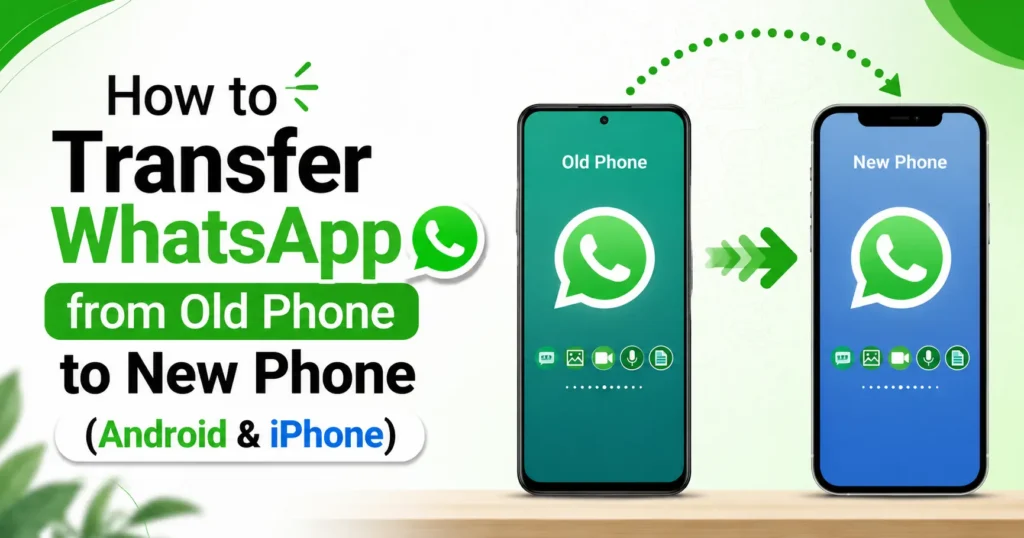
How to Transfer WhatsApp from Old Phone to New Phone (Android & iPhone)
Buying a new phone is exciting, but many people worry about losing years of WhatsApp chats, family photos, videos, and important documents. The good news is that WhatsApp now offers several safe ways to transfer everything to your new phone. Whether you’re moving from Android to Android, iPhone to iPhone, or switching between Android and iPhone, this guide explains every official method step by step so you can transfer your data without losing anything.
Things You Need Before Starting
Before you transfer WhatsApp to your new phone, make sure you have everything ready. A few simple checks can save time and help prevent problems during the process.
Here are the things you’ll need:
- Your old and new phones should be fully charged or connected to a charger.
- The same phone number linked to your WhatsApp account.
- A stable Wi-Fi connection, especially if you’re restoring from Google Drive or iCloud.
- Enough free storage on your new phone to store your chats, photos, videos, and documents.
- The latest version of WhatsApp installed on both devices for the best compatibility.
- Your Google or Apple account if you’re restoring a cloud backup.
- A recent WhatsApp backup (if you’re using Google Drive or iCloud) to make sure your latest chats are included.
Quick Tip: Don’t delete WhatsApp or reset your old phone until you’ve confirmed that all your chats and media have successfully transferred to your new device. Taking this extra step can help you avoid losing important conversations and files.
Android to Android
- On your old phone: Settings > Chats > Chat backup > back up to Google Drive (this is your safety net).
- Install WhatsApp on your new phone and sign in with the same phone number.
- When prompted, tap “Transfer from old device” this shows a QR code.
- Scan that QR code using your old phone to link the two directly (no Google Drive needed for this method).
- If the direct transfer option doesn’t show up, just restore from your Google Drive backup instead.
iPhone to iPhone
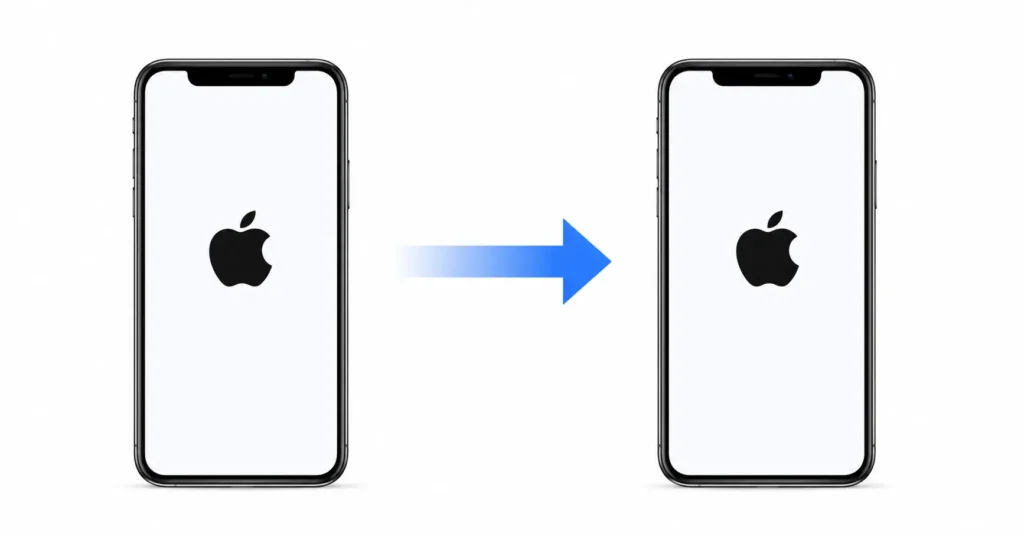
- On your old iPhone: Settings > Chats > Chat Backup (this saves to iCloud).
- Still on the old iPhone, tap “Transfer Chats to iPhone” > Start a QR code appears.
- On your new iPhone, set up WhatsApp using the same phone number.
- Scan the QR code from your old iPhone to transfer chats directly.
- If that doesn’t work, a “restore from iCloud” option will appear during first setup as a backup plan.
Android to iPhone
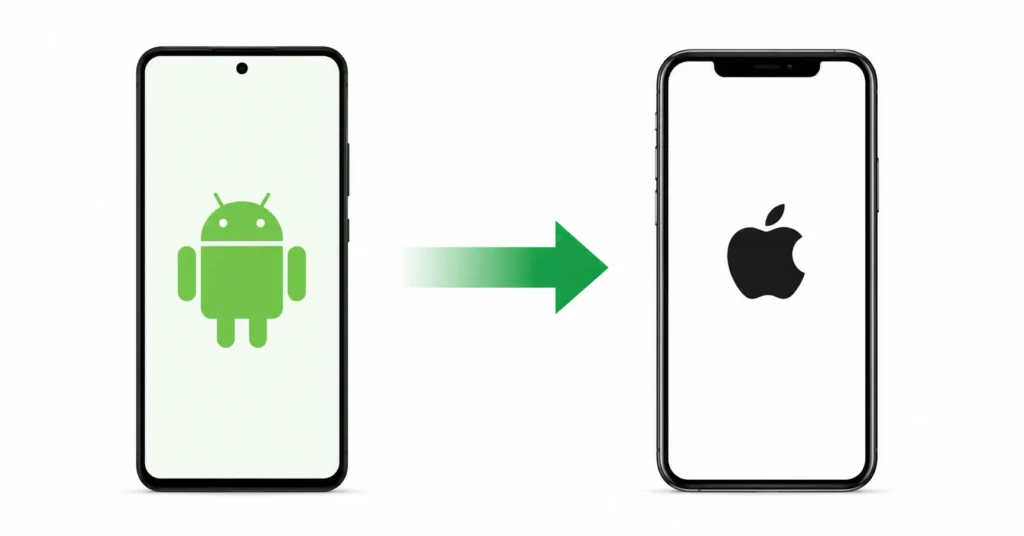
- Install the Move to iOS app on your Android phone.
- Start setting up your new iPhone, and follow the prompts to link it with your Android phone via Move to iOS.
- On the data-transfer screen, make sure WhatsApp is selected.
- Complete the transfer this is the only way to move chats, since Google Drive backups can’t be restored on iPhone.
iPhone to Android
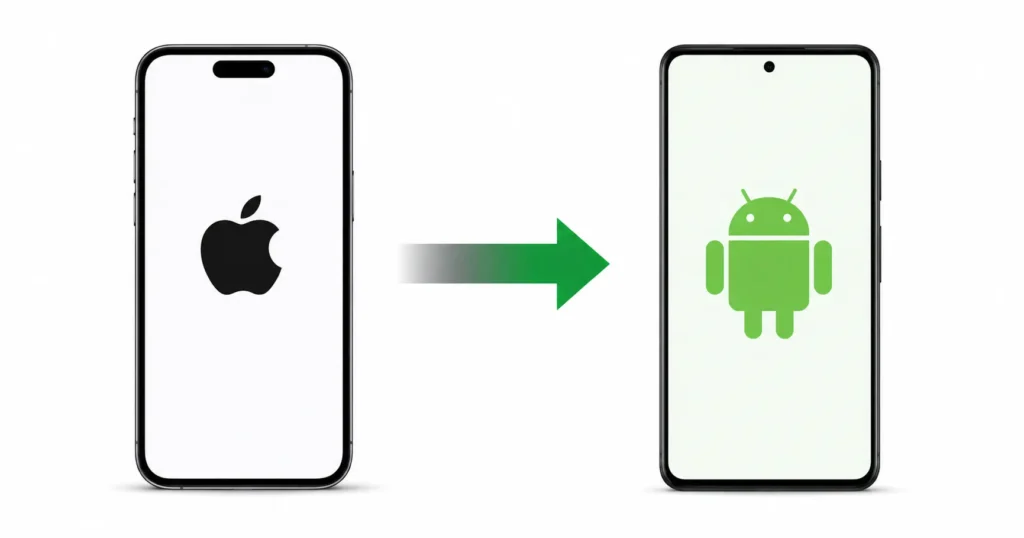
- Start setting up your new Android phone (this must be done during initial setup, not after).
- When prompted, connect your iPhone and Android phone using a cable (USB-C to USB-C or USB-C to Lightning).
- In the app-transfer list, select WhatsApp along with anything else you want moved.
- Let the transfer complete, then open WhatsApp on your new Android and log in with your same number.
One tip that applies to all methods: don’t uninstall WhatsApp from your old phone until you’ve confirmed everything transferred properly on the new one.
Why you should transfer WhatsApp before switching phones
When you get a new phone, WhatsApp doesn’t move your chats automatically. You have to transfer them yourself using a backup or a special tool and this must be done before you open WhatsApp fresh on the new phone. If you skip this, your old chats, photos, and videos will be lost forever.
Simple Steps:
- Backup on your old phone : Open WhatsApp > Settings > Chats > Chat Backup > Back Up Now.
- Keep both phones with you : (if switching between Android and iPhone) you’ll need this for the transfer tool.
- Use WhatsApp’s transfer tool : On the new phone, open WhatsApp and choose “Transfer your WhatsApp data” (Android↔iPhone) or just restore from backup (same OS).
- Verify your number :on the new phone it will ask to restore your chats after backup is found.
- Wait for restore to finish : don’t close the app during this step.
What happens to your data?
Getting a new phone is exciting, but losing years of WhatsApp conversations, family photos, or important work messages isn’t. The good news is that WhatsApp is designed to transfer your data safely, so you can continue chatting without starting from scratch.
When you move WhatsApp to a new phone using an official transfer method, your account and most of your data are securely copied to the new device. This typically includes:
- Your personal and group chats
- Photos, videos, and voice messages
- Documents and other shared files
- Stickers and GIFs
- Archived conversations
- Chat wallpapers and many app settings
- Your profile photo, display name, and account information
Your messages remain protected with end-to-end encryption throughout the process. This means only you and the people you’re chatting with can read your conversations neither WhatsApp nor anyone else can access your message content during the transfer.
Will Anything Be Lost?
Mostly, no. If you follow WhatsApp’s official transfer steps, your chat history and media should appear on your new phone exactly as they did on your old one.
However, a few items may not transfer depending on the devices you’re using, such as:
- Call history
- Payment information (where supported)
- Some device-specific settings
- Certain temporary app data
If you’re switching between Android and iPhone, the transfer may take a little longer because the two operating systems store data differently. Even so, WhatsApp’s official migration tools are designed to move your chats and media securely.
Important: Don’t remove WhatsApp from your old phone or reset it until you’ve confirmed that all chats, photos, and videos have successfully appeared on your new device.
Fastest Transfer Method
The fastest way to transfer WhatsApp is by using the official device-to-device transfer feature. Instead of uploading your chats to Google Drive or iCloud and downloading them again, this method moves your messages, photos, videos, and documents directly from your old phone to your new one. As a result, the transfer is usually much quicker and more reliable.
If you have both phones with you, this is the recommended option because it reduces waiting time and lowers the risk of missing chats or media files. Cloud backups are still useful when your old phone isn’t available, but they generally take longer since the data must be uploaded and restored over the internet.
For the fastest and smoothest WhatsApp migration, choose direct device-to-device transfer whenever possible. It’s the most efficient way to keep your conversations, media, and settings intact while switching to a new phone.
This version is better because:
- ✅ Starts with the answer in the first sentence (great for featured snippets).
- ✅ Uses simple, natural English.
- ✅ Includes related keywords like device-to-device transfer, Google Drive, iCloud, WhatsApp migration, and new phone.
- ✅ Ends with a clear takeaway that improves readability and user satisfaction.
Common mistakes
Moving WhatsApp to a new phone is usually easy, but small mistakes can cause problems like missing chats or an incomplete transfer. Here are the most common ones to avoid:
- Deleting WhatsApp too soon: Don’t uninstall WhatsApp from your old phone until you’ve checked that everything has been transferred successfully.
- Not creating a backup: If you’re using Google Drive or iCloud, make sure your latest backup is complete before starting.
- Using a different phone number: Transfer WhatsApp with the same phone number linked to your account whenever possible.
- Interrupting the transfer: Don’t turn off either phone, disconnect Wi-Fi, or close WhatsApp while the transfer is in progress.
- Not enough storage: Make sure your new phone has enough free space for all your chats, photos, and videos.
- Poor internet connection: If you’re restoring from a cloud backup, use a fast and stable Wi-Fi connection.
- Resetting the old phone too early: Wait until you’ve confirmed that all your chats and media are available on your new phone before erasing the old device.
Tip: Take a few minutes to check your chats, photos, and videos on your new phone before getting rid of your old one. This simple step can help you avoid losing important WhatsApp data.
Before You Start
Before you begin transferring WhatsApp to your new phone, take a few minutes to prepare. This can help you avoid errors and reduce the risk of losing your chats or media.
First, make sure both phones have enough battery or keep them connected to a charger. Check that your new phone has enough free storage to receive all your WhatsApp data. If you’re using a cloud backup, connect to a stable Wi-Fi network and create a fresh backup before starting. Also, update WhatsApp to the latest version on both devices for the best compatibility.
Most importantly, don’t remove WhatsApp from your old phone until the transfer is finished and you’ve confirmed that everything has moved successfully.
After the Transfer
Once the transfer is complete, open WhatsApp on your new phone and let it finish loading your chats and media. Depending on the size of your data, photos and videos may take a few extra minutes to appear.
You can now continue using WhatsApp just as you did on your old device. Your chat history, groups, profile photo, and most settings should already be available. If everything looks correct, you can safely sign out of WhatsApp on your old phone or reset the device if you no longer need it.
How to Check Everything
Before deleting WhatsApp from your old phone, spend a few minutes checking that all your important data has been transferred.
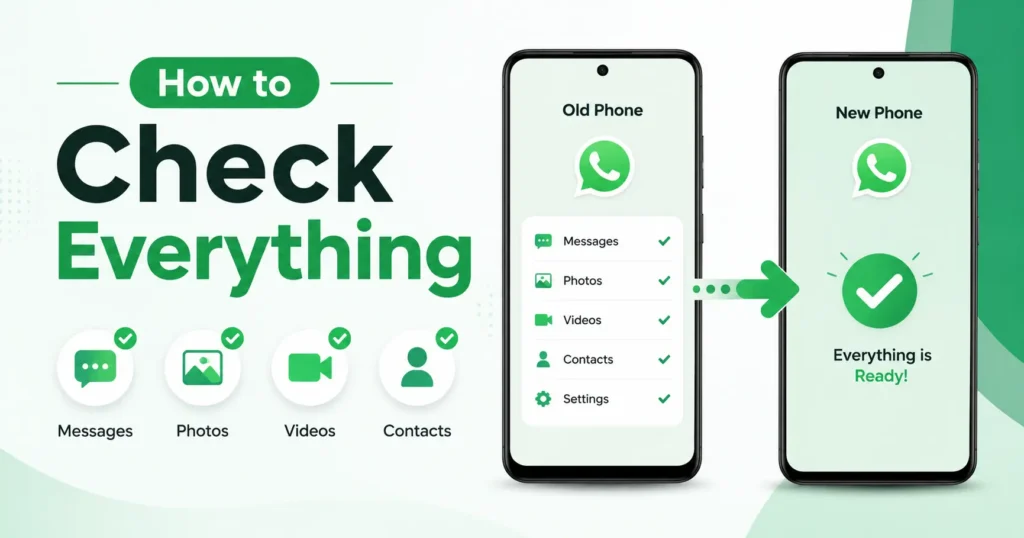
Here’s a quick checklist:
- Open a few recent and older chats.
- Check that your photos, videos, and documents are available.
- Make sure your group conversations are still there.
- Verify your profile photo and display name.
- Send a test message to confirm WhatsApp is working normally.
If everything is available on your new phone, your transfer was successful.
What Won’t Transfer
Most WhatsApp data moves to your new phone without any issues, but a few things may not transfer depending on the method you use and the type of devices you’re switching between.
These may include:
- Your call history.
- Payment information (where available).
- Some temporary app data and cached files.
- Certain device-specific settings.
If you’re moving between Android and iPhone, a few features may work differently because the two operating systems are not exactly the same. However, your chats, photos, videos, and other important data should transfer normally when using WhatsApp’s official tools.
Privacy and Security Tips
Your WhatsApp messages are protected with end-to-end encryption, so your conversations stay private during the transfer process. Even so, it’s important to follow a few simple safety tips.
Always use WhatsApp’s official transfer feature or a trusted backup method instead of third-party apps. Avoid sharing your verification code with anyone, as it can give others access to your account. If you’re using public Wi-Fi, consider switching to a secure network before transferring sensitive data.
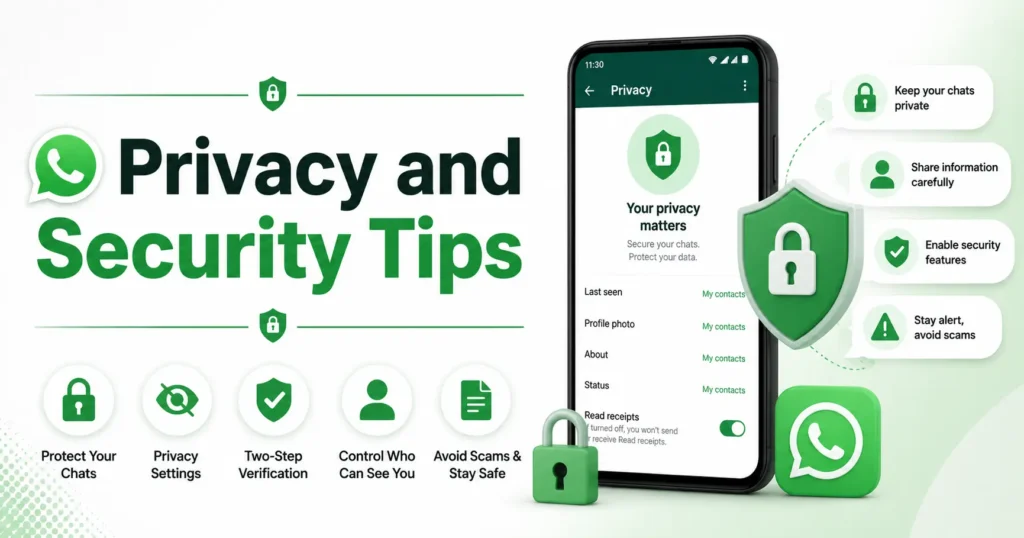
After the transfer is complete, review your WhatsApp settings and confirm that your account is working properly. If you’re selling or giving away your old phone, make sure you’ve successfully transferred your data before resetting the device. This protects both your personal information and your chat history.
By following these simple steps, you can move WhatsApp to a new phone safely, keep your conversations secure, and avoid unnecessary problems during the transfer.
You can use same Method for MB WhatsApp.
FAQs
Can I transfer WhatsApp without Google Drive?
If you have both your old and new Android phones, you can transfer WhatsApp without Google Drive using WhatsApp’s official device-to-device transfer feature. Simply scan the QR code shown on your new phone, and your chats, photos, videos, and documents will transfer directly. This method is usually faster than restoring a cloud backup and doesn’t require an internet upload.
Can I transfer WhatsApp without iCloud?
If you have your old and new iPhones, you can transfer WhatsApp directly without using iCloud. Just use WhatsApp’s Transfer Chats to iPhone feature and follow the on-screen instructions. If you don’t have your old iPhone, you’ll need an iCloud backup to restore your chats.
How long does WhatsApp transfer take?
The time depends on how much WhatsApp data you have. Most transfers take 5 to 30 minutes, but large chat histories with many photos and videos can take longer. A direct phone-to-phone transfer is usually faster than restoring from Google Drive or iCloud.
Will My Photos Transfer Too?
When you use WhatsApp’s official transfer or backup method, your photos, videos, documents, and voice messages will transfer along with your chats. Just make sure you complete the transfer process without interruption.
Can I use a different phone number?
Yes, but it’s recommended to transfer WhatsApp using the same phone number first. After your chats have been transferred successfully, you can change your number later using WhatsApp’s Change Number feature without losing your chat history.
Can I transfer WhatsApp after setting up my phone?
Yes, but it depends on the transfer method. You can restore a Google Drive or iCloud backup after installing WhatsApp. However, some phone-to-phone transfer methods work only during the initial setup of your new device.
Does WhatsApp transfer deleted messages?
Yes, but it depends on the transfer method. You can restore a Google Drive or iCloud backup after installing WhatsApp. However, some phone-to-phone transfer methods work only during the initial setup of your new device.